
Seize the Screen: Maximizing Snagit’s Potential

- Access
- Lifetime
- Assistance
- Expert Tutor Support
- Flexibility
- Learn Anytime, Anywhere
Overview
Seize the Screen: Maximizing Snagit’s Potential
Are you tired of struggling to capture and edit screenshots effectively? Do you wish you could make your presentations, tutorials, and documentation more engaging and professional? Look no further! 🌟
Website: Training Station – Our Courses
Overview:
Welcome to “Seize the Screen: Maximizing Snagit’s Potential” – the ultimate course designed to unlock the full power of Snagit, the leading screen capture and image editing software. Whether you’re a seasoned professional or a novice user, this course will take your skills to new heights!
Benefits:
🚀 Master Snagit Like a Pro: Learn the ins and outs of Snagit from industry experts, uncovering advanced techniques and shortcuts to streamline your workflow.
🎨 Create Stunning Visuals: Discover how to enhance your screenshots with annotations, effects, and graphics, turning dull images into captivating visuals that grab attention.
🔍 Efficient Editing: Save time and frustration by mastering Snagit’s editing tools, enabling you to crop, resize, and manipulate images with ease.
📚 Boost Productivity: Say goodbye to tedious tasks with Snagit’s automation features. Learn how to create custom workflows and presets to speed up your work and increase efficiency.
📈 Enhance Communication: Whether you’re crafting reports, presentations, or instructional materials, learn how to use Snagit to communicate ideas effectively and professionally.
Who is this for?
This course is perfect for anyone looking to elevate their screen capture and editing skills. Whether you’re a marketer, educator, content creator, or business professional, mastering Snagit will revolutionize the way you communicate and collaborate.
Career Path:
Upon completion of this course, you’ll possess valuable skills that are highly sought after in today’s digital landscape. Whether you’re aiming for a promotion, seeking new job opportunities, or looking to freelance, your newfound expertise in Snagit will open doors to exciting career prospects in fields such as:
🖥️ Digital Marketing 👩🏫 Education and Training 💼 Content Creation 📊 Business Analysis 🎨 Graphic Design
FAQ:
Q: Is this course suitable for beginners? A: Absolutely! This course caters to users of all skill levels, from beginners to advanced users. Our comprehensive curriculum covers everything you need to know to get started with Snagit and master its advanced features.
Q: Do I need any prior experience with image editing software? A: No prior experience is necessary. Our instructors will guide you through each step of the process, ensuring that you understand the fundamentals of image editing and how to apply them using Snagit.
Q: What if I have specific questions or encounter challenges during the course? A: Our dedicated support team is here to help! Whether you have questions about the course material or encounter technical issues, our experts are standing by to provide assistance and ensure that you have a seamless learning experience.
Q: Can I access the course content on any device? A: Yes! Our course platform is compatible with desktop computers, laptops, tablets, and smartphones, allowing you to access the content anytime, anywhere. Whether you’re at home, in the office, or on the go, you can continue your learning journey with ease.
Q: Is there a certificate upon completion of the course? A: Yes, upon successful completion of the course, you will receive a certificate of achievement to showcase your newfound skills and expertise in Snagit.
Don’t miss out on this opportunity to unlock the full potential of Snagit and take your screen capture and editing skills to the next level. Enroll now and start seizing the screen today! 🚀
Curriculum
- Overview
- Purchasing Options for Snagit
- Snagit Interface
- Snagit Capture Settings
- Snagit Menu Preferences
- Using the All In One Capture Tool
- Using the All In One Capture Tool to Create a Video
- Using the All In One Capture Tool to Capture A Panoramic Image – Part 1
- Using the All In One Capture Tool to Capture A Panoramic Image – Part 2
- Using the Capture Window -Image Tab – Selection Box
- Using the Capture Window -Image Tab – Effects Box
- Using the Capture Window – Effects Box – Multiple Effects
- Using the Capture Window – Share Box – File and Formats
- Using the Capture Window – Share Box – Microsoft Programs
- Using The Free Techsmith Screencast Hosting
- Sharing Image Content to Screencast
- Sharing Image Content To Image Based Desktop Programs
- Sharing Images to Multiple Locations
- Using The Video Recording Window
- Sharing Your Recording on Screencast
- Overview
- File Menu – Part 1
- File Menu – Part 2
- Edit Menu – Editor Preferences
- Introduction to the Tools Menu
- Working with Stamps
- Working with the Arrow and Text Tools
- Working with the Callout Tool
- Resize Image and Canvas
- Rotating – Canvas Snapping and Canvas Color Tools
- Using the Library
- The View Menu
- View Menu – Zoom In and Out Tools
- Image Menu – Effects and Arrange Tabs
- Image Menu – Move Tool
- Image Menu – Blur Tool
- Canvas Creation
- Canvas Creation with Multiple Images
- Turning Video into Gif Using Editor
- Conclusion
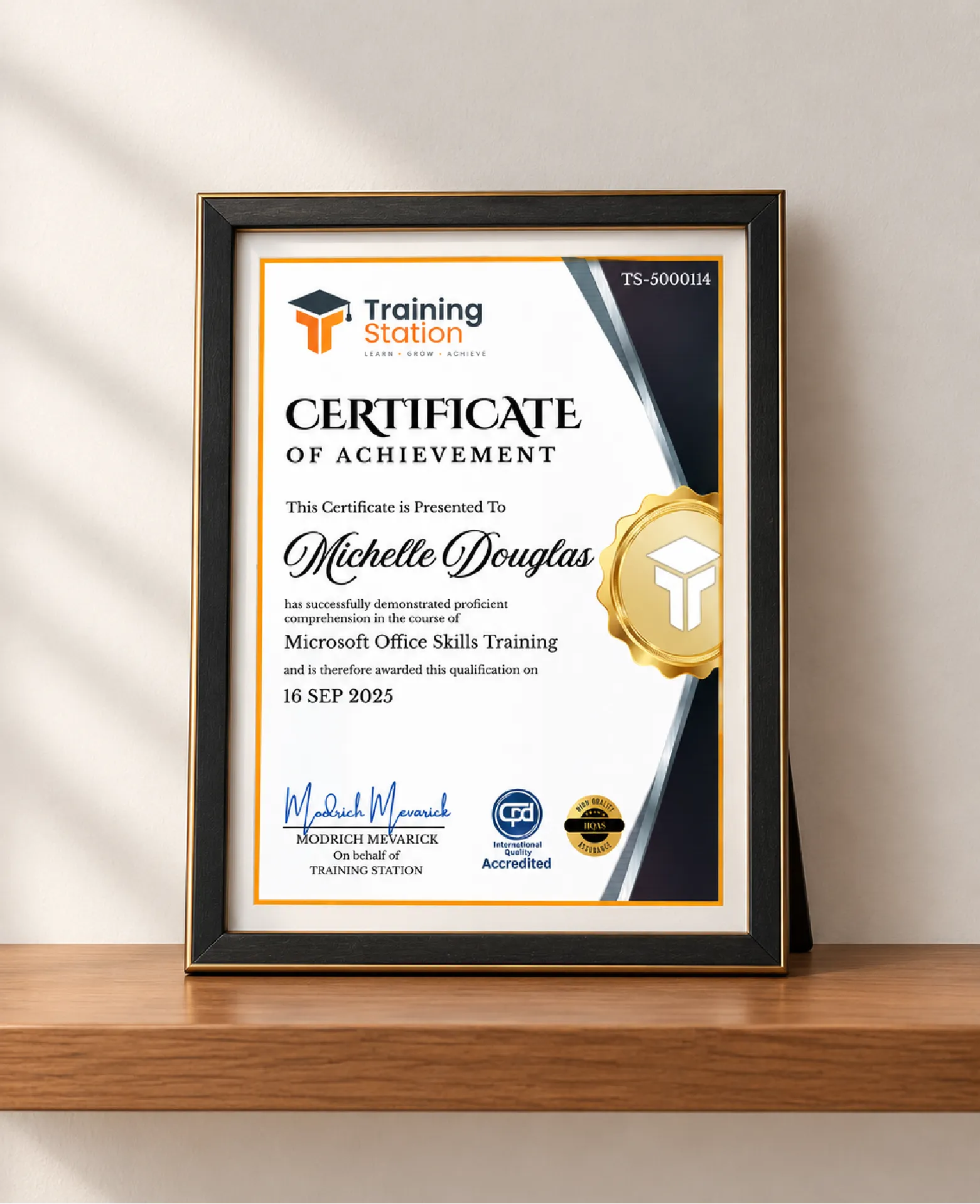
Celebrate your achievement with a CPD-IQ accredited certificate from Training Station! Perfect for showcasing your skills, boosting your career, and enhancing your professional profile.
Get this CourseOur Courses Accreditation





Frequently Asked Questions
Fully online through PDF materials and video lessons. Learn anytime, anywhere.
Self-paced: complete it in a week or spread it over months.
No. The course is beginner-friendly.
Yes. Instructor support is available Monday to Friday.
Yes. We offer a 14-day money-back guarantee.
 Access all courses for Only £99