
Adobe Premiere Pro Training: Complete Beginner’s Guide
- Access
- Lifetime
- Assistance
- Expert Tutor Support
- Flexibility
- Learn Anytime, Anywhere
Overview
Video editing is an essential skill in modern digital media. Businesses use video to promote products, educators use it to explain complex subjects, and content creators use it to entertain and inform audiences. Adobe Premiere Pro is a widely used video editing application that provides tools for organising footage, editing sequences, improving sound and preparing finished productions.
This course is designed to introduce you to Adobe Premiere Pro and help you develop the knowledge needed to approach video editing projects with confidence. You will explore the editing workspace, learn how to manage media files and understand how video clips are transformed into a complete production.
You will develop an understanding of the editing process, including importing footage, creating sequences, arranging clips, trimming unwanted sections and working with multiple tracks. You will also explore how titles, transitions, audio adjustments and colour correction contribute to the final appearance of a video.
A key focus is understanding how the different editing tools work together. Rather than treating editing as a collection of unrelated operations, you will learn to approach a project in stages, from initial organisation to final export.
You will also develop an awareness of how editing decisions influence storytelling, pacing and audience engagement. These skills can be applied to personal projects, online content, business videos and further creative learning.
Whether you are completely new to video editing or want to establish a stronger foundation in Premiere Pro, this course will help you understand the essential processes involved in producing digital video content.
What You Will Learn
By studying this course, you will develop an understanding of:
-
The purpose and main capabilities of Adobe Premiere Pro.
-
Navigating the editing workspace and panels.
-
Creating, saving and organising projects.
-
Importing and managing video, audio and image files.
-
Understanding sequences, frame rates and video resolution.
-
Working with the Timeline and editing tools.
-
Cutting, trimming and rearranging footage.
-
Using multiple video and audio tracks.
-
Applying transitions and basic visual effects.
-
Adding titles, captions and text elements.
-
Adjusting audio and balancing sound levels.
-
Understanding colour correction and visual consistency.
-
Preparing videos for different platforms.
-
Exporting and reviewing finished video files.
-
Following an organised editing workflow.
Getting to Know Adobe Premiere Pro
You will begin by exploring the role of Adobe Premiere Pro in the video production process. You will understand how the application supports the editing stage and how it connects with other activities, such as recording footage, preparing graphics and publishing finished content.
You will also explore the difference between raw video footage and an edited sequence. Raw footage may contain mistakes, unnecessary sections or material recorded from different angles. Editing helps select and organise this material into a coherent production.
Understanding this process will help you recognise the purpose of the tools available in Premiere Pro.
Navigating the Editing Workspace
The Premiere Pro interface contains several panels that support different stages of editing. Learning where to find the relevant tools can make your workflow more efficient.
You will explore the Project panel, Source Monitor, Program Monitor, Timeline and other commonly used areas of the workspace.
You will understand how the Project panel stores and organises imported assets, how the Source Monitor helps preview individual clips and how the Program Monitor displays the edited sequence.
You will also learn how the Timeline brings video and audio elements together. Understanding the relationship between these panels will help you navigate projects and locate the tools required for common editing tasks.
Creating and Organising Projects
A video project may contain numerous clips, images, sound files and graphics. Organising these assets from the beginning can make editing easier and reduce confusion.
You will explore how to create and save projects and understand the importance of keeping project files and source media organised.
You will develop an understanding of folders, bins and clear naming conventions. You will also learn why it is important to know where original media files are stored.
These organisational habits can help you manage projects more effectively, particularly when working with longer videos or multiple content formats.
Importing Footage and Understanding Media
You will explore how to bring video, audio and image files into Premiere Pro.
You will learn how to review imported material, identify useful sections and organise assets before beginning the main editing process.
You will also develop awareness of common media properties, including resolution, frame rate and file format.
Understanding these properties can help you make more informed decisions when preparing a project and selecting export settings.
Working with Sequences and the Timeline
The Timeline is where the main editing work takes place. It allows you to arrange clips, adjust their duration and combine multiple visual and audio elements.
You will explore how sequences are created and how sequence settings influence the final video.
You will learn how to place clips on the Timeline, move them into the required order and understand how different tracks operate.
You will also develop an understanding of how video and audio tracks can be used together to create a complete viewing experience.
Editing, Cutting and Trimming Footage
Editing involves selecting the most useful material and arranging it to communicate a clear message.
You will explore how to cut clips, trim their start and end points, remove unwanted sections and rearrange footage.
You will also understand how clip length and sequence order affect pacing.
For example, a short promotional video may require concise scenes and quick transitions, while an educational video may benefit from longer sections that allow viewers to understand the information.
Developing these editing skills will help you shape footage according to the purpose of the production.
Transitions and Visual Effects
Transitions help connect one clip to another. They can support changes in time, location or subject and contribute to the overall presentation.
You will explore common transition techniques and understand when they may be appropriate.
You will also develop awareness of basic visual effects and how they can change the appearance of footage.
You will learn why effects should be used with purpose. Adding too many visual elements can distract viewers, while carefully selected effects can support a consistent editing style.
Titles, Captions and Graphics
Text elements can help viewers understand the content of a video. Titles may introduce a subject, captions may support spoken information and graphics may highlight important details.
You will explore how to add and position text elements in Premiere Pro.
You will develop an understanding of readability, timing, placement and consistency. You will also consider how text should be designed for the intended viewing platform.
These skills can help you create videos that communicate information more clearly.
Audio Editing and Sound Management
Audio quality has a significant effect on the viewing experience. Clear speech and balanced background sound can make a video easier to follow.
You will explore how audio clips are arranged and adjusted within Premiere Pro.
You will develop an understanding of audio levels, background music and voice recordings. You will also learn why sound should be reviewed throughout the editing process rather than only at the end.
This knowledge can help you identify problems such as uneven volume, distracting background music or audio that does not match the video sequence.
Colour Correction and Visual Consistency
Footage recorded in different environments may have inconsistent brightness, contrast or colour balance.
You will explore the purpose of basic colour correction and understand how adjustments can improve the overall appearance of a video.
You will develop awareness of exposure, contrast, white balance and colour intensity.
You will also understand why visual consistency matters when combining clips recorded under different lighting conditions.
Exporting and Sharing Your Videos
The export stage turns an edited sequence into a finished video file.
You will explore the export process and develop an understanding of commonly used settings, including file format, resolution, frame rate and compression.
You will learn why export settings should match the intended destination.
For example, a video prepared for a widescreen presentation may require a different format from a vertical social media video.
You will also understand why reviewing the exported file is important. A final check can help identify problems with sound, picture quality, titles or timing before publication.
Building a Complete Editing Workflow
An organised workflow helps you approach projects systematically.
You will explore how to move through the editing process in stages: planning, importing, organising, assembling, refining, reviewing and exporting.
You will also develop good working habits, including saving projects regularly, keeping media organised and checking the final sequence.
These practices can help you manage future projects more confidently and reduce avoidable editing errors.
Who Is This For?
This course is suitable for learners who want to understand Adobe Premiere Pro and develop foundational video editing skills.
It may be particularly useful for:
-
Complete Beginners: Learn the essential principles of video editing.
-
Aspiring Video Editors: Develop foundational knowledge before progressing to advanced techniques.
-
YouTube Creators: Understand how to edit and prepare online videos.
-
Social Media Creators: Explore how to create video content for different platforms.
-
Digital Marketers: Learn how video editing can support promotional communication.
-
Small Business Owners: Develop knowledge for producing business videos.
-
Students: Build an understanding of digital media production.
-
Freelancers: Explore video editing as an additional creative skill.
-
Content Teams: Understand the stages involved in preparing edited video material.
Requirements / Prerequisites
No formal qualifications or previous editing experience are required.
You should ideally have:
-
Basic computer skills.
-
Access to a compatible computer.
-
Access to Adobe Premiere Pro.
-
Sample video and audio files for practice.
-
An interest in video production and digital content.
Adobe Premiere Pro is a commercial application, so access may require a suitable subscription or licence. A basic understanding of file management will also be helpful.
Skills You Can Develop
Video Editing: Understand how to cut, trim and arrange footage.
Project Organisation: Learn how to manage media assets and project files.
Timeline Management: Develop confidence working with multiple tracks.
Visual Storytelling: Understand how editing choices influence the flow of a video.
Audio Management: Learn basic techniques for adjusting sound.
Text and Graphics: Understand how to add titles and captions.
Colour Correction: Develop awareness of basic visual adjustments.
Export Preparation: Learn how to prepare videos for different platforms.
Creative Workflow: Develop a structured approach to editing projects.
Career Path
Premiere Pro knowledge can support further development in creative media, video production and digital marketing. This course provides foundational training rather than a professional qualification, and employment opportunities may require a portfolio, practical experience and additional technical skills.
Potential career directions include:
Junior Video Editor: Work towards editing video material for online and commercial projects.
Social Media Video Editor: Develop video content for social media platforms.
YouTube Editor: Support content creators with footage selection, editing and presentation.
Digital Content Creator: Combine video editing with planning and content production.
Digital Marketing Assistant: Use video editing knowledge to contribute to promotional activities.
Multimedia Assistant: Support projects involving video, images and digital communication.
Freelance Video Editor: Build a portfolio and explore independent editing projects.
Video Production Assistant: Develop towards broader responsibilities in production environments.
Further learning in motion graphics, advanced editing, sound design, colour grading and production planning can help you progress towards more specialised roles.
Applying Your Knowledge
You can apply the course concepts by creating a short video project. Begin by collecting and organising suitable footage, then create a project and import your media.
Arrange the clips on the Timeline, remove unwanted sections and develop a clear sequence. Add titles where they improve understanding, adjust the audio and review the visual consistency.
Once the sequence is complete, export it using settings suitable for the intended platform. Review the finished file to check that the video, sound and timing work as expected.
This practical process can help you understand how the different editing stages combine to produce a finished video.
Conclusion
The Adobe Premiere Pro Training Course will help you develop a clear understanding of beginner video editing techniques and the workflow used to create finished digital content.
You will explore project organisation, media importing, timeline editing, transitions, titles, audio, colour correction and exporting.
By developing these skills, you can approach video projects with greater confidence and establish a foundation for more advanced editing.
Whether your goal is to create online videos, support business communication or explore a creative career, this course can help you take the next step in learning Adobe Premiere Pro.
Curriculum
- Course Introduction
- Exploring the Interface and Workspaces
- Understanding Premiere Pro Panels
- Project Setup Fundamentals
- Understanding Frames and Timecodes
- Creating a Sequence from Media
- Navigation Essentials
- Performing Insert Edits
- Setting Clip Duration
- Completing the Main Story Edit
- Duplicating Editing Sequences
- Introduction to Cutaway Editing
- Using Cutaways to Enhance Storytelling
- Adding a Background Soundtrack
- Adjusting Audio Levels
- Resolving Common Audio Issues
- Applying Final Audio Enhancements
- Understanding Clip Handles
- Creating Video Titles
- Designing Colour Mattes
- Creating Lower Third Graphics
- Adding Rolling End Credits
- Creating Captions and Subtitles
- Introduction to Video Effects
- Advanced Lumetri Colour Grading
- Applying Effects to Multiple Clips
- Stabilising Shaky Footage
- Working with Motion Properties
- Introduction to Animation
- Working with Nested Sequences
- Using Comment Markers
- Introduction to Speed Adjustments
- Applying Selective Speed Changes
- Advanced Editing Techniques
- Restoring Broken Animations
- Managing Projects with Project Manager
- Relinking Offline Media
- Course Wrap-Up and Conclusion
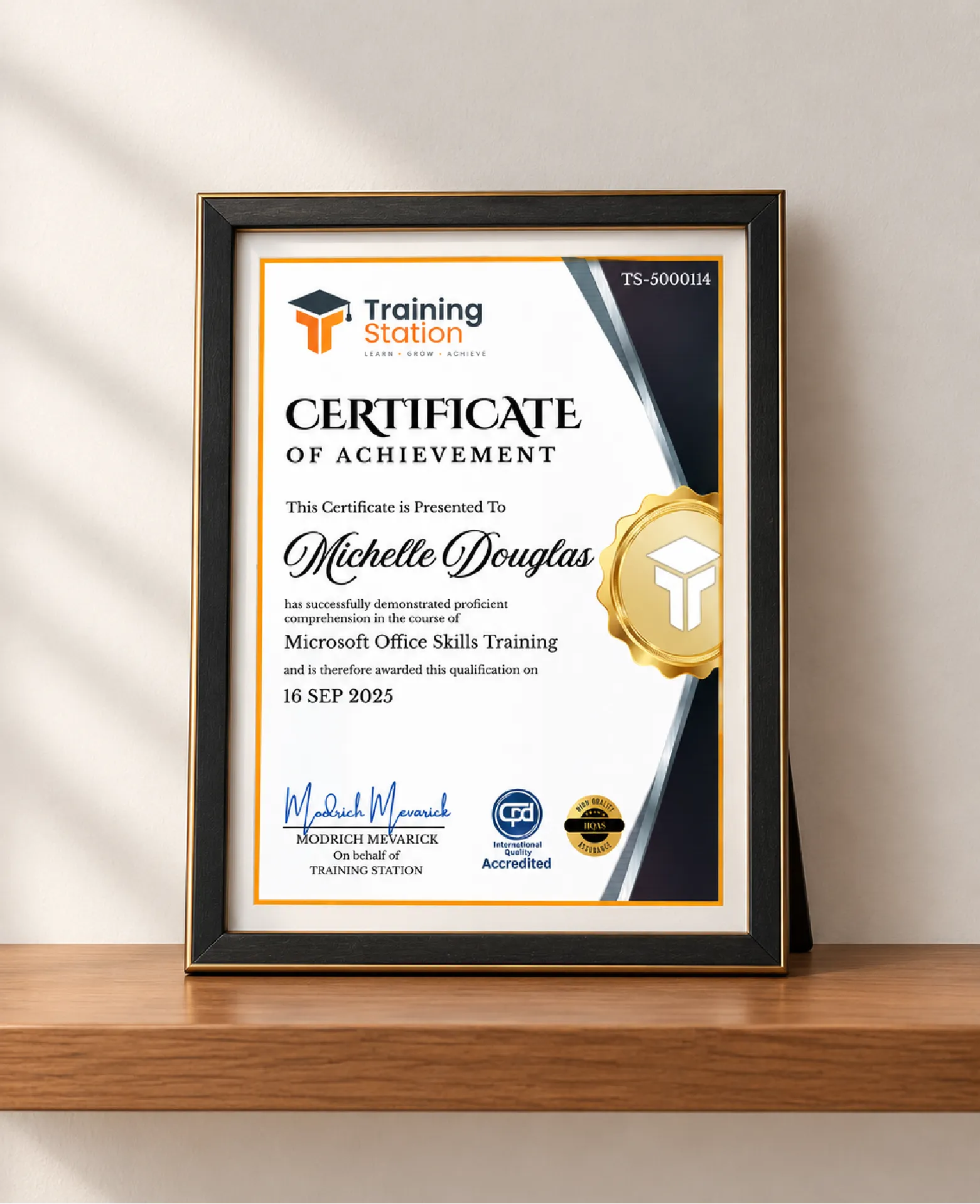
Celebrate your achievement with a CPD-IQ accredited certificate from Training Station! Perfect for showcasing your skills, boosting your career, and enhancing your professional profile.
Get this CourseOur Courses Accreditation






Frequently Asked Questions
Fully online through PDF materials and video lessons. Learn anytime, anywhere.
Self-paced: complete it in a week or spread it over months.
No. The course is beginner-friendly.
Yes. Instructor support is available Monday to Friday.
Yes. We offer a 14-day money-back guarantee.
 Access all courses for Only £99